Your guided exploration into the CLI beneath the surface
Thinking back to the first time I logged into a FortiGate’s CLI I remember being struck by how different it was to most other network device CLI’s I had encountered before – most others I had previously used being based on Cisco IOS. The FortiOS CLI felt foreign and I didn’t have a clear path in my exploration of this system. A lot like the “fog of war” used within real time strategy games like Age of Empires, I knew there was a lot to discover but needed a helping hand in that regard.
That helping hand came in the form of the tree command.
So today, let’s take a stroll down a lesser-traveled path and take a look at the tree command. This little gem helps you map out the configuration command tree in FortiOS, giving visibility into the structure of commands under a given section (or even the whole system).
Why should I care about the tree command?
If you’ve ever asked yourself what commands are available under a particular configuration section, the tree command is your answer. For example, if you wanted to know what commands were available under config system lldp network-policy, you could execute the command tree system lldp network-policy and you’ll get a nested-list view of all the attributes and sub-objects supported there.
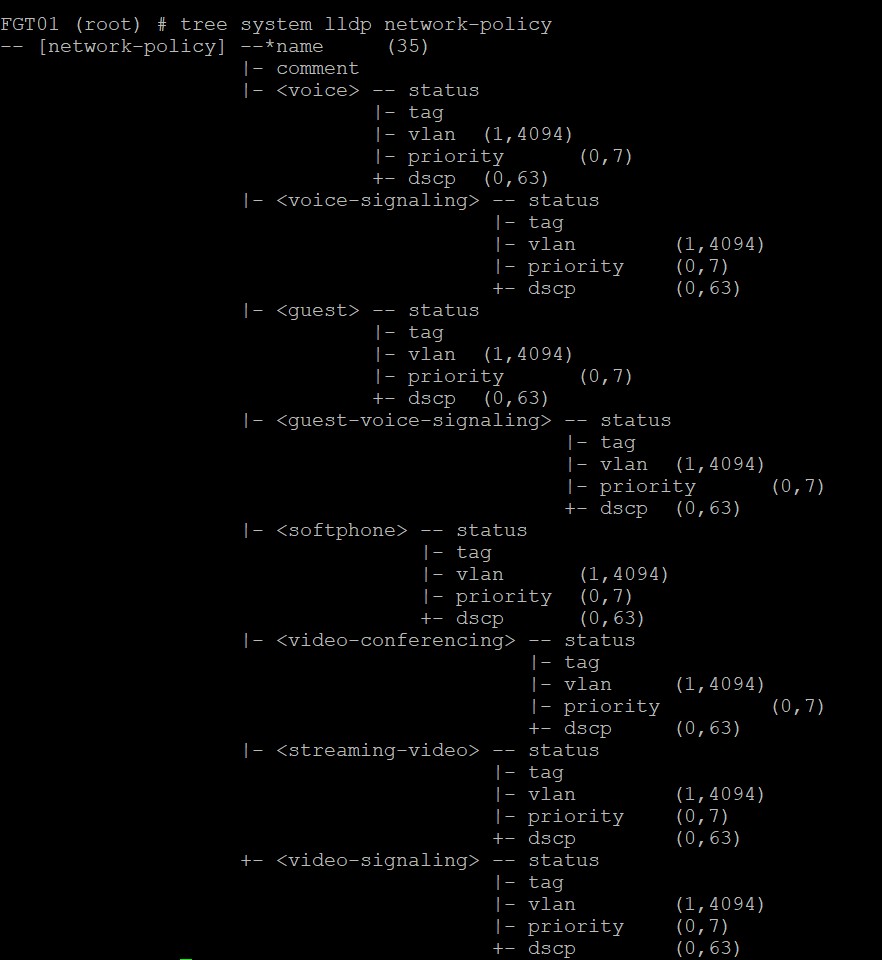
What this view gives you is a hierarchical listing of the commands, the sub-objects, and their children, indicating how the CLI is structured.
From here you can gleam some insight into the configuration options available to you, and search for specific commands within the FortiOS documentation to provide any additional context you may need.
When working on a time sensitive project or even in the FCX lab exam on a configuration section that may not be familiar to you, the tree command can help quickly shed light on what config options are available and help you target searches in documentation, saving you a ton of time.
Thank you to Leroy van der Steenhoven for providing inspiration for this post.


 FCX Study Group
Leave a comment